JAVA App on Docker

Passionate ORACLE DATABASE ADMINISTRATOR | DevOps Enthusiast with a strong background in cloud architecture and solutions engineering.
Docker is a platform that enables developers to automate the deployment of applications within lightweight, portable containers.
These containers package an application and its dependencies, ensuring consistency across different environments. Running a Java application on Docker involves creating a Docker image and then running containers based on that image.
Here's a step-by-step guide to introducing a Java application to Docker:
1. Create a Dockerfile:
#getting base image(os on which java already installed)
FROM openjdk:11

#working directory on which all the code will be kept (inside container)
WORKDIR app/

#copy the app from your system to the current working directory  of container
COPY  Hello.java .

#compile code
RUN javac Hello.java

#run java compiled code
CMD ["java","HelloWorld"]
Adjust the FROM directive to the appropriate Java version and customize other parts based on your application structure.
2.Build the Docker Image: Open a terminal in the same directory as the Dockerfile and run the following command to build the Docker image:
docker build -t your-image-name
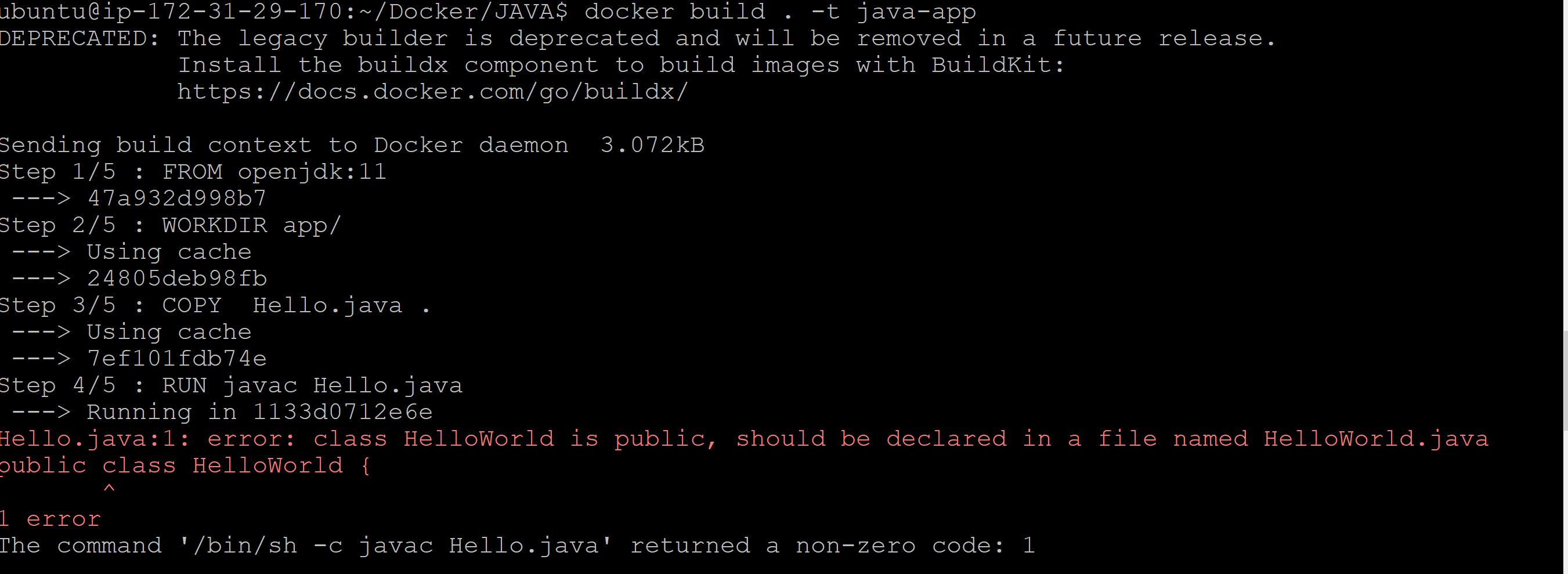
We are getting an error here due to the name mismatched, we need to check our docker file and correct the same.
#getting base image(os on which java already installed)
FROM openjdk:11

#working directory on which all the code will be kept (inside container)
WORKDIR app/

#copy the app from your system to the current working directory  of container
COPY  HelloWorld.java .

#compile code
RUN javac HelloWorld.java

#run java compiled code
CMD ["java","HelloWorld"]
So we keep the same name everywhere as "HelloWorld" for Java file and Java class.
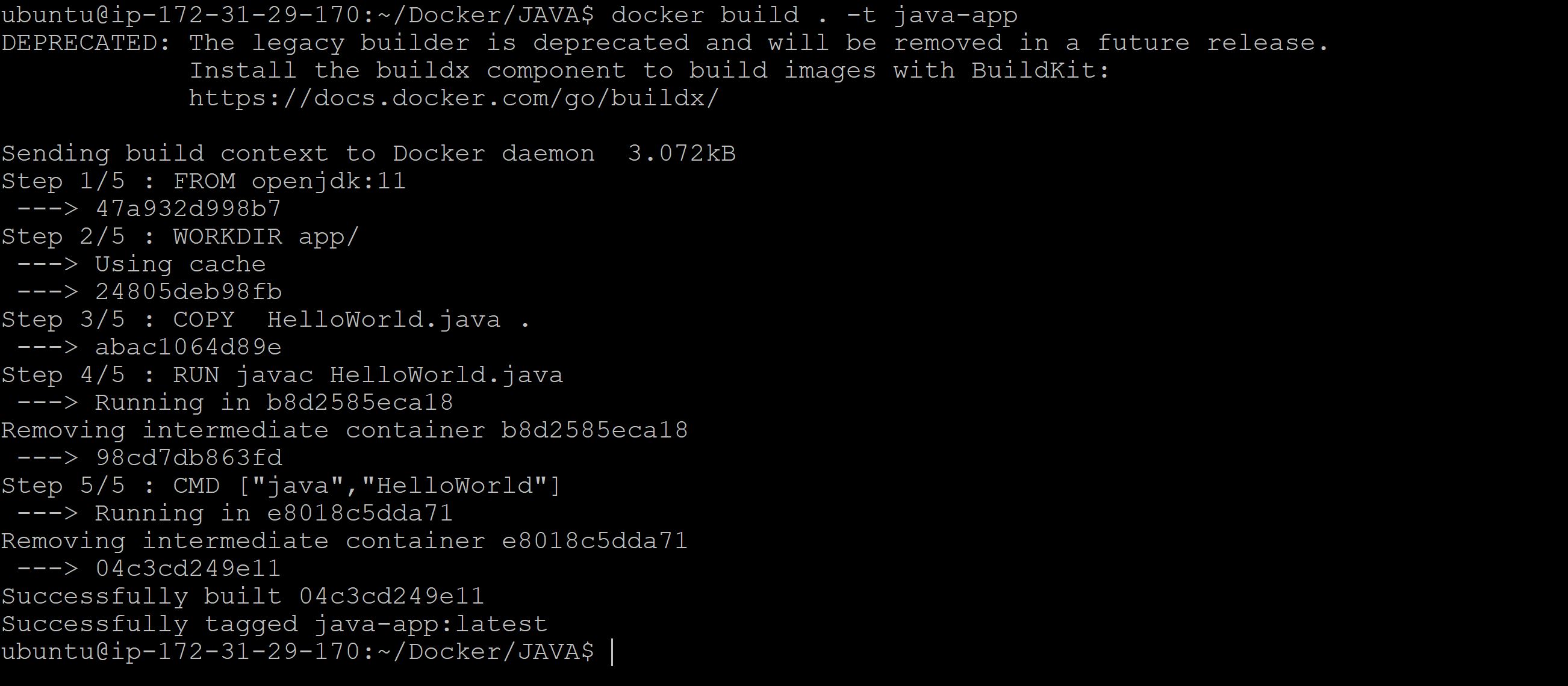
You can see in the above image, intermediate layers are executing one by one.
The first 4 (FROM, WORKDIR, COPY RUN) are intermediate layers. To make the container, we use the 'RUN' command. Once the container gets built, then we need to use the 'CMD' command to access the container externally.

3.Run the Docker Container: Once the image is built, you can run a container based on that image:
docker run your-image-name

Boooommm! You are done with basic java app on Docker container.
Optimizations and Best Practices:
Use a specific Java base image (e.g.,
openjdk:11) to ensure compatibility.Minimize the number of layers in your Docker image for better performance.
Use
.dockerignoreto exclude unnecessary files from the build context.Consider using multi-stage builds for production to create smaller final images.